Develop Testing Packages
Overview
This document shows how to build packages for develop testing for OTA
- Author
Abhijit, Shan
- Date
Nov 01, 2021
- Version
7.4.0
Introduction
Its to be used for building custom OTA packages.
You can chose any successfully built package, it could be package that failed testing too
You can provide your own custom zip file too
Note
At start custom zip is only supported for IHUB
OTA Package Window Layout
Note
Package secured format is only available from version 6.2+. Signature feature is only available from version 6.0+
Blow is the overall window layout for 6.2+ version.
For Package Signature please check Package Signature.
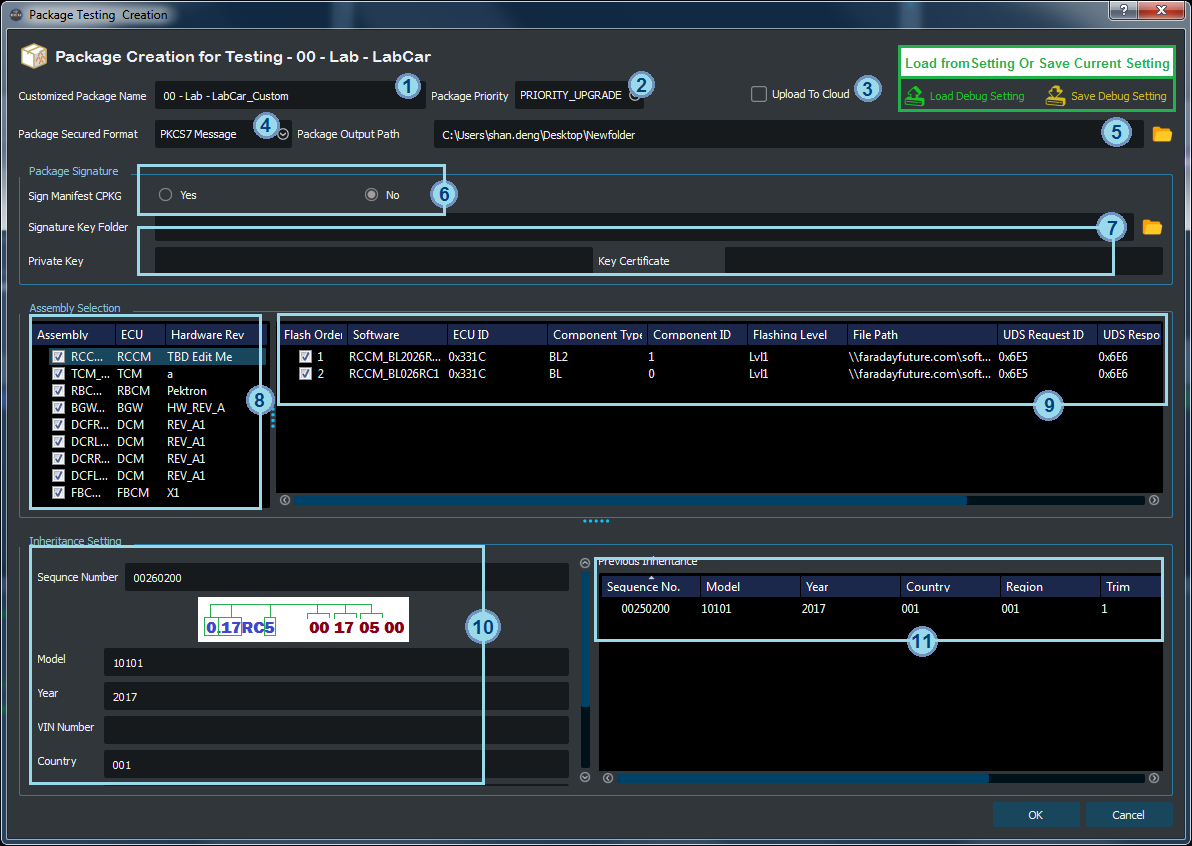
The ota package name input field (required).
The package priority (default PRIORITY_UPGRADE).
The upload to cloud controller (default False).
- The package secured format (default PKCS7 Message).
For creating package before version DF91_00.27 please use (Encapsulated Message).
The signing algorithm is different for each secured format.
Encapsulated Message format is priority for all packages before version DF91_00.27.
PKCS7 Message format is priority for all packages from version DF91_00.27.
The package output path (required), please select the path with
Folderbutton.The package signing option (default False), this is only supporting PKCS7 format.
- The package signature auto load fields, please using
Folderbutton to load. Select the signature key files folder.
The key files will be automatic loaded from the selected path.
Error will be showed if the files are incorrect.
- The package signature auto load fields, please using
The Assembly List selector, all selected assemblies will be included.
- The Software List selector, for each assembly only the selected software will be included.
File Path field can be edited by double click.
Package Type field can be edited by double click.
The package Inheritance information editor.
The package Previous Inheritance information editor.
Process
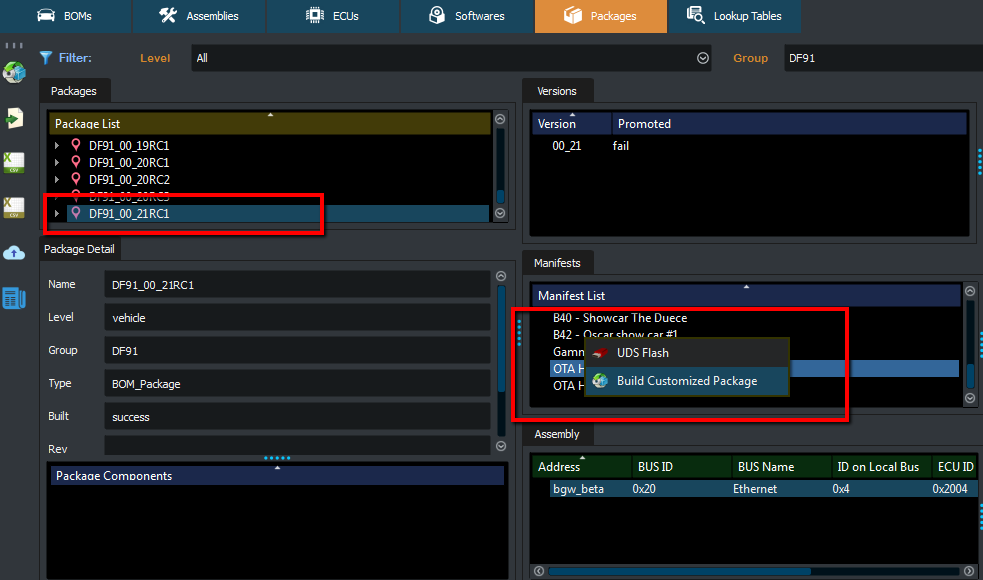
Select the Manifest to be used for custom package
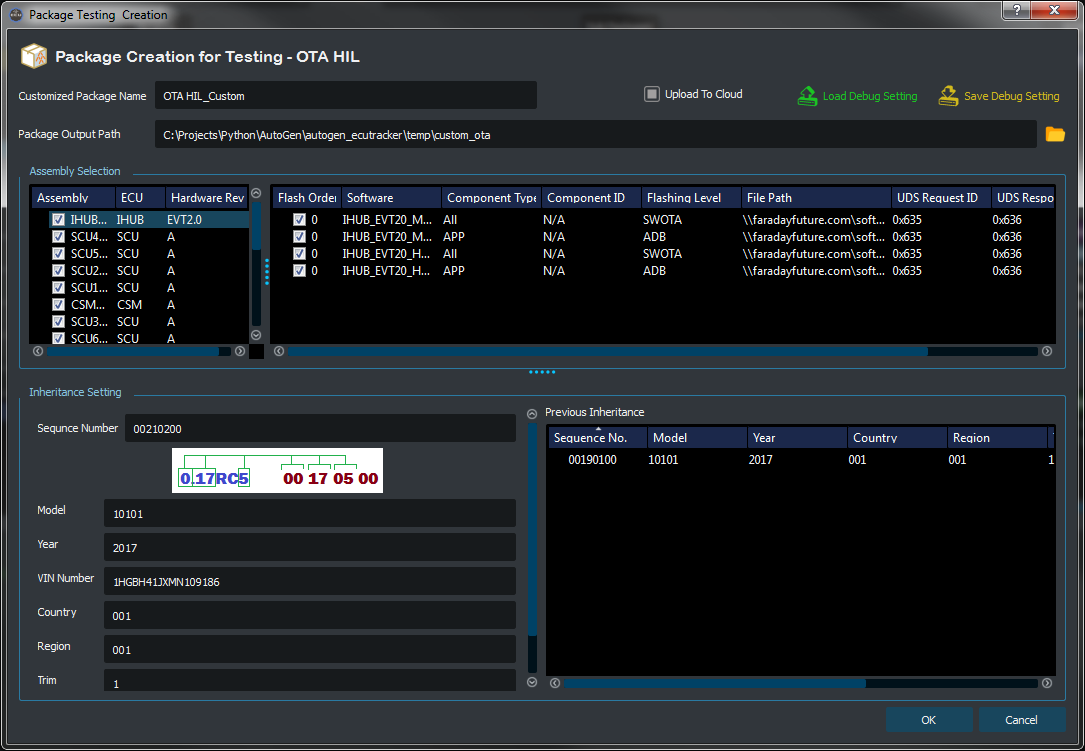
Select target ECUs and Software Components to be used in custom package.
Use left side Check Box to select the target ECU and Software, the default is checked for all level.
Click OK to start flashing
Select the correct inheritance for your packagage
For IHUB Only, in the
File Pathcolumn you can give your own custom zip file. Please ensure you give the correct zip for correct start string. This file can be located on your own C drive tooAt later stage we will add this facility for other ECU’s also
If you want you can save this setting using the
Save Debug SettingoptionThis gives you a chance to save settings to a
*.pextension file, which you can give to others use later
To load a previously saved setting, use the
Load Debug SettingoptionThis will work even if you load a setting file you saved using a different manifest
It will try to match the assemblies and copy that info
It will copy the inheritance from that file
To also upload the package after creation please select the
Upload To CloudGive the package the name you want, this would be the name of the generate OTA manifest
Select the output location for the package
Once ready click
OKand wait for package to be built and be uploaded to cloud.
Note
The package is built locally and uses your computer resources and internet. Please ensure you do not unplug internet connection
It generates two folders in the given output location
new_styleandold_stylenew_stylecreates the new style package with.cpkgand.ec2filesold_stylecreates the old style package with.pkg,.swpkgand.ec2files
If
Upload To Cloudwas selected it will try to upload only the new style package and its associated files
A gif showing how to build custom package