Package Status
Overview Below is the comprehensive documentation for package status in ECU Tracker.
- Author
Shan Deng
- Date
Nov 01, 2021
- Version
7.4.0
Introduction
Status Tree
Not Yet Implemented
Exporting an early .csv to see status
See: Find a Package.
If there is no package, follow the same rules to ‘Find a Package’ and then hit the create button.
A new package will be created, but it may not actually be built.
Choose a manifest to export.
Click on the to_csv button to export a .csv file.
Enter the directory for the .csv file.
Check on the status line for each row of the .csv. It will tell you what is holding up this package from being created.
Note
Note: The GUI may appear to frozen or be unresponsive while exporting. Give it 30s to a minute to complete the job.
Find a Package
Go to the Packages tab.
Select the Level from the dropdown box.
Select the Group from the dropdown box.
Select the Version from the dropdown box.
Note
Note: There might not be a package for the level, group, and version. If so, it has not been created yet.
Package Status Chart
Note
This feature is available after version 5.0.0
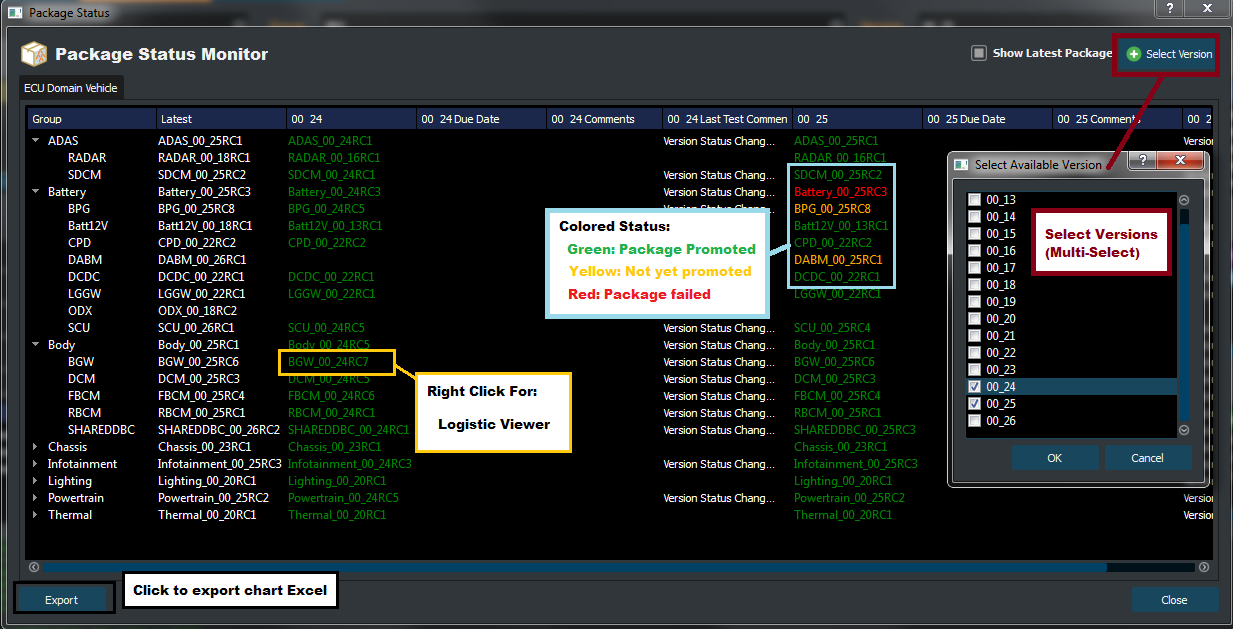
This is a tool for monitoring package status for Domain and ECU level packages.
This tool support by release version monitoring.
This tool also support exporting chart to excel file.
Usage
The tool can be access from Package Window Tool bar>**View ECU/Domain Package Status**
A short cut [CTRL+SHIFT+S] is also supported.
Note
Vehicle Group User please double click on Due Date and Comments to edit.
Tips
Right click on the package name to view the package logistic.
To unset Due Date right click on the Due date field and select Unset
Hover the Last Test Comment to see formatted version note in Tool Tip