Package Creation and Building
Overview Below is the comprehensive documentation for creating packages using ECU Tracker.
- Author
Daniel
- Date
Nov 01, 2021
- Version
7.4.0
Contents:
Introduction
For each ECU or Electrical Device there can be several different ECU Assembly of different Instance For each Domain there can be several Variant objects with different BOM s for each domain variant. For the Car/Vehicle, there will be different Variant s with different BOM s for each car type.
Which instructions to follow
All Packages are now built by Jenkins. However, not all components are built by Jenkins.
Supplier ECUs have components built by the suppliers (but packages built by Jenkins).
Some in-house ECUs have components built by Jenkins, and packages built by Jenkins.
If you can click a button in Jenkins and get a resulting .zip or .hex file, your ECU is “Built by Jenkins”.
Rules with multiple assemblies
If there are 2 or more different versions of a component, i.e. 2 different SCU_Apps, or 2 different SCU_CALs there are special rules:
They shall not the same part number.
They shall not have the same version. If they had the same version, than during development while the version is broadcast but the Pnumber is not, it cannot be differentiated.
The version in the tracker shall be detailed enough so that the 2 variants can be differentiated from each other. It would be unacceptable to have the version listed as 0.13RC1 if 2 different ECUs have 0.13RC1, the subminor must be specified. i.e. 0.13.RC1.18.11
They should not share a start_string. If there are 2 items SCU_App.hex or 2 different files found by ‘SCU_App’, the tracker cannot update version numbers for you. This is ok, but it should be avoided when possible.
DRE: (with components built by Jenkins) Creating a Package
Specify Software
For any new software that the ecu tracker will build, right click and add a new software line item.
Go to the Softwares tab.
Go to the Bottom Detail: “Softwares”.
Fill in all of the fields other than file path.
Leave built = false.
For the version just put Major.Minor (MM.mm)
When Jenkins builds the package it will fill in the full version, and the full file path for you.
For field details see Software Fields Details.
Specify Software List
Go to the Softwares tab.
Go to the Top Detail: Software List Types.
See if there is an old software list that can be reused.
If so, right click on the left half of the Software List Detail, and add a new version to the list.
If not:
Right click on the software list type which will contain the software list.
Click add software list.
Name the software list with a unique descriptive name.
Click on all the other software lists in the same software list type. Make sure none of them have the version you are about to build listed.
If necessary right click and delete the version from an old list. This only happens when the old list is part of a failed package.
Right click and add the release version to the newly created list.
On the right half of the Software List Detail:
Right click to add an item
Select the software from the drop down list.
Ensure the flash order is correct. (it can be 0 based or 1 based)
Build the package following the instructions on Create/Build a Package.
See TroubleShooting
Note
For some in-house ECUs, Jenkins creates a BL, and a BLU at the same time, but it only has a BLULogistics.json If this is the case, the Jenkins job can only update the tracker tool for the BLU, and not the BL. To build these packages takes 2 attempts. On the first attempt, it will build the BL and BLU, but it will only update the BLU in the tracker. The BL information must then be manually updated. Afterwards, try building the package a 2nd time. It will build tha app if needed, and it should successfully build the package.
Guidelines or priorities with multiple assemblies
One branch
Having Sconstruct handle multiple variants in the same branch is the long term solution.
Sconstruct must be modified so that a single release branch and Jenkins job creates all variants.
Sconstruct and scons either has to put information for the multiple variants into the existing LogisticsData.json or multiple .json files.
Sconstruct must ensure that subminor is different for the different variants.
The ecu tracker will need to be updated to handle the multiple .json files.
In the short term, some of the file path and “built” fields would need to be filled in by hand.
More than one branch built by Jenkins
The better short term solution is to have 2 different release branches built by Jenkins.
Both branches must use the official shareddbc branch.
The ‘Release Branch’ field of the softwares tab can be used to tell the ecu tracker and Jenkins to use a non-standard branch.
Manual Upload
The least preferable option is to manually upload code.
A supplier style job can be created for your ECU.
Ask Jaepyong Kim or send an IT helpdesk ticket to request this job be created for you if needed.
The Variant .zip file(s) will be uploaded through the supplier style job.
The tracker for built and file path must be updated manually.
DRE (supplier based, or in house built separately) Creating a Package
Supplier or non Jenkins ECUs
Uploading .zip files using Jenkins
Make sure your .zip file follows the naming convention: Jama Requirements.
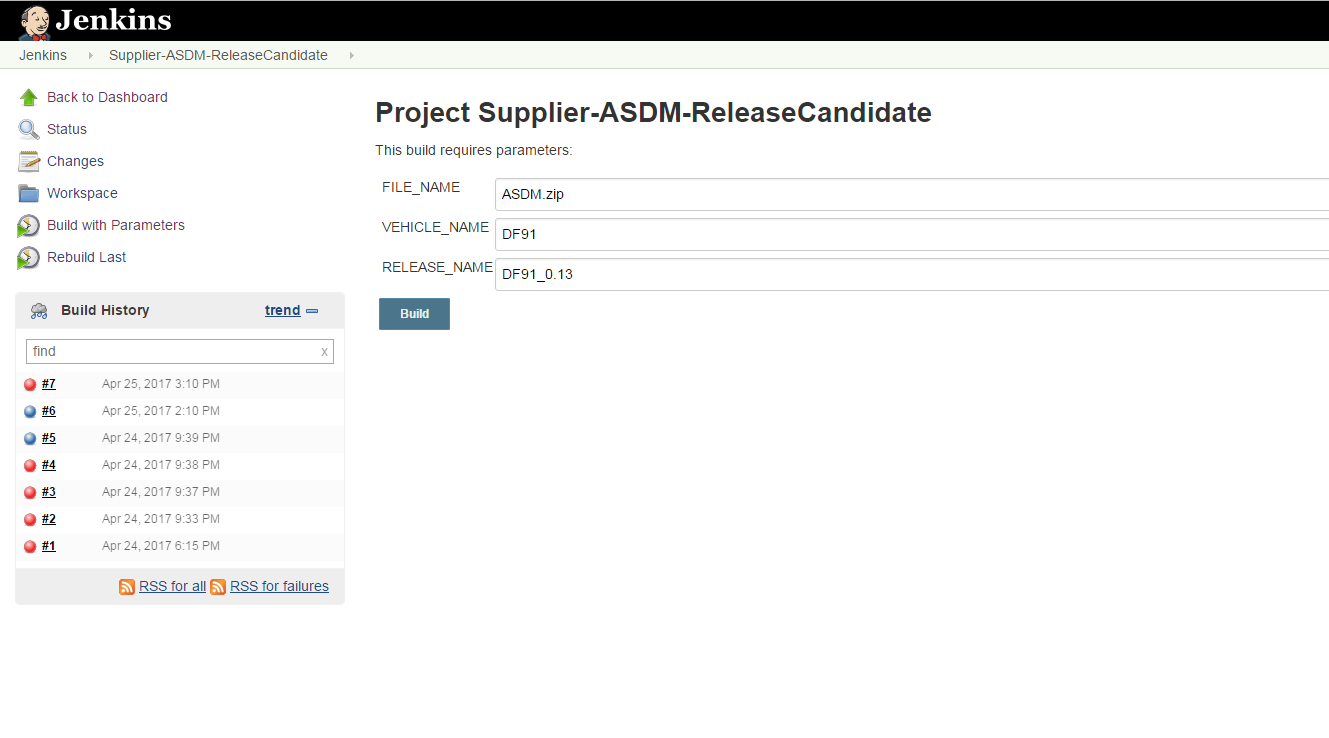
Go to Jenkins job for your ECU or default (Supplier-ECU-ReleaseCandidate).
Go to Jenkins Supplier Jobs.
Login to Jenkins.
Scroll down and find the job such as (default) Supplier-ECU-ReleaseCandidate.
Make sure your .zip is in
\\faradayfuture.com\softwaredev\Supplier_Temp.On the left side click “Build with Parameters”.
Fill in the form
For File_Name: put the filename with extension (but not the full file path).
For Vehicle_Name: put “DF91”.
For Release_Name: put “DF91_M.mm” where M is the major version and mm is the minor version.
For ECU (default supplier job): Select the ECU name from drop down list.
Hit Build.
Look for your file in
//faradayfuture.com/softwaredev/FirmwareBuilds/${VEHICLE_NAME}/ECU_ReleaseCandidate/${RELEASE_NAME}/Suppliers/${ECU}/If the “Build with parameters” does not show up, please submit a helpdesk ticket.
Uploading supplier .zip files from tracker
Note
This feature is available from version 6.0 and only support Supplier ECU
This feature is using the default Supplier-ECU-ReleaseCandidate. job.
Please make sure your ECU is in the Job ECU List. Contact tracker support if your ECU is missing from the select list.
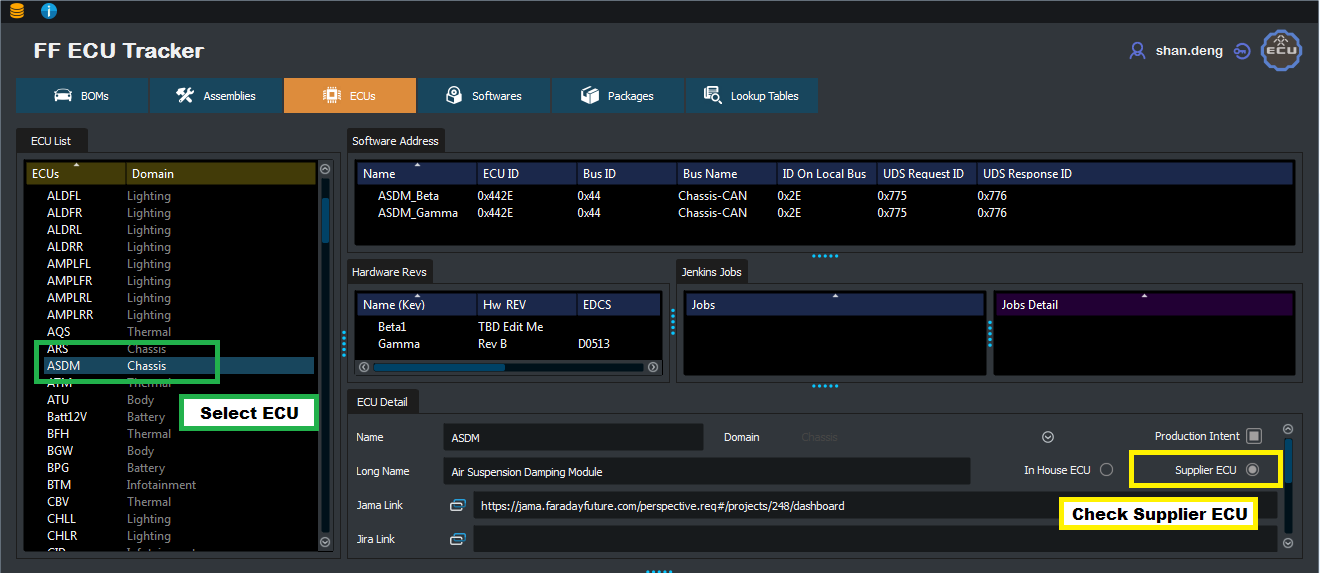
Make sure your ECU is Supplier ECU.
Go to ECU window, select your ECU in the ECU list.
Check the Supplier ECU.
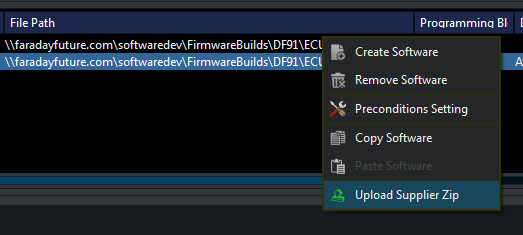
Got to Softwares window, select your ECU in the ECU list.
Select the target software and right click on the File Path field.
Select Upload Supplier Zip in the right click menu.
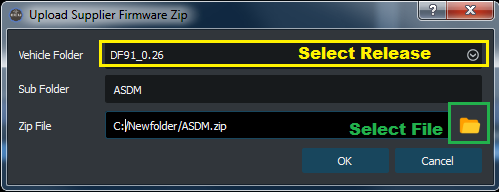
Select Vehicle Folder (Release).
Select zip file using the Folder button
Hit OK to start uploading.
Adding the software components to the tracker
Go to the ECU tracker.
For every software component, add a row to the Softwares Tab, software list at the bottom.
Note
For 0.13 only, you may modify existing items in the list with a new file path.
See also
Software Fields Details if necessary:
Adding A Software List
If any new software items were added, go to the software lists in the top.
Right click on the SW list type to add a sw list.
Right click in the Versions section to add the targeted release version.
Right click in the rightmost tab to add software items:
Pick the software item from the dropdown list.
Enter the flash order: For some items such as a bootloader, you can either run a bootloader updater, or you can load the bootloader via JTAG, but you do not need to do both; either one is fine. If this is the case, use the same flash order number for the bootloader updater, and for the JTAG bootloader, this indicates that the person flashing can do either one.
Required_Bootloader: Put in the minimum bootloader version in order to flash this item. By default, the list will show you previous bootloader versions or N/A if you are loading something via JTAG. However, if the bootloader restrictions are more detailed, you can type whatever is needed in this field.
Flash_Tool: Pick the required flash tool from the drop down list. If your item is not shown, you can type in a new option.
Notes: If there are any special instructions, this can point to a file to read, or contain text for anything that somebody would need to know to flash your ECU.
Reusing a Package
Find your package Find any existing packages.
The existing package should have previously built successfully and promoted to success.
In the Versions window, right click to add new version for which you are reusing the package.
Next, promote the package to success for this new version.
Using the Package Page
Find any existing packages
Fill in the level from the dropdown box.
Fill in the group from the dropdown box.
Select the desired version from the dropdown box in the top right.
Note
If reusing a package, search for it under the previous version.
Create/Build a Package
Either select a package which is not built, or to create a new package, fill in the level, group, and version.
Hit the Create/Update button in the top left.
Enter your Jenkins username and password.
There will be an option, “Allow build without ECMs”. Try this with No. If the build fails because it can’t create .ecm files, try again with Yes, and work with the OTA team to figure out why the .ecm creation failed.
Warning
If you are building a Domain level package, please ensure all ECUs under that domain have been promoted. Only then will the Domain package be built successfully.
Software Fields Details
Software: A unique name for this component. It should include some version info in the name to keep it unique. Note, when creating ecms, it will use this name.
Built: True once the file has been built.
Version: This should be Major.Minor (MM.mm) before building, and Major.Minor.RC[RC].Subminor.BuilderID after building.
Flashing Level: What level of bootloading is expected based on bench tests?
Component Type: Pick from drop down. All is reserved for android packages. With Jtag, the likely answer is App.
Start String: There are different rules for supplier vs in-house ECUs.
Android or QNX ECUs: The Start strings must not be duplicated within any software list, or duplicated within single ECU Assembly. For example, no duplicates inside the IHUB_EVT2.0_SURROGAtE assembly, however, the same start string can be used in IHUB_EVT2.0 SURROGATE and within IHUB_EVT2.0_VISTEON. Furthermore, if the software component is being used for OTA flashing for Android or QNX, the start string must be chosen from the following list.
Note
Note: It is possible to have an ECU have some processors be Android and some be simple processors. In that case follow the Android vs Other instructions on a software component by software component basis.
SWOTA_REAR_DISPLAY_CONTROLLER (future when rear display controller gets software)
SWOTA_MULTI_MODEM_UNIT (mmu)
SWOTA_MPC (mpc)
SWOTA_HPC (hpc)
SWOTA_ADAPTER (iab)
SWOTA_HYPERVISOR (future when the IHUB gets a 3rd component the hypervisor?)
Other ECUs: See Jama Requirements. The start_string must be the ECU, the component type, and the Variant type if necessary. It should not contain any version info. The start_string will be used for in-house ECUs to kick off Jenkins jobs, so make sure it is typed in correctly. If a new start_string is added for an in house ECU, please let somebody on the tools team know so that they can connect the proper Jenkins job.
Component Number: This is the component number for flashing and/or reading back the version. For most components, the component number for flashing and reading is the same. However, for some components, such as bootloader updaters, the component is flashed to location 2, but the version is read from location 1. If the flash, and read locations are the same, enter a single number. If it can’t be flashed using UDS, and it can’t be read via UDS, or the periodic version message, put N/A. If it is flashed on one address, and read on another put the flash address first, then the read address separated by a comma. i.e. ‘2,1’. If it is flashed via JTAG, and can be read, put N/A as the flash part, and the read address as the 2nd part. i.e. ‘N/A,1’
Note
Note: Component number is also known as the ID field from the DSA tool. See the bootloader spec for more details.
PNumber: The component software part number as soon as it is known.
Owner ID: Enter your email address.
FilePath: Put in the full file path to the file starting with P:for ECUs uploaded using the supplier method. For ECUs compiled by Jenkins, the file path is filled in for you.
Description: Whatever you want here.
Release Branch: Leave this blank for supplier ECUs, or if your release branch is the standard release branch such as /release/DF91_0.13 Fill this in with whatever comes after /release for non standard release branches. For example if your release branch was /release/MYVARIANT_DF91_0.13 enter MYVARIANT_DF91_0.13
Pre-Conditions
Pre-conditions are needed to help with OTA
It tells the VUM (Vehicle Update Manager) how to flash and what it needs to consider before flashing
So for example you can tell the BPG_21APP, has preconditions where it depends on some version of BGW_21App, or BPG_21Cal
The are added to the OTA package created for each component
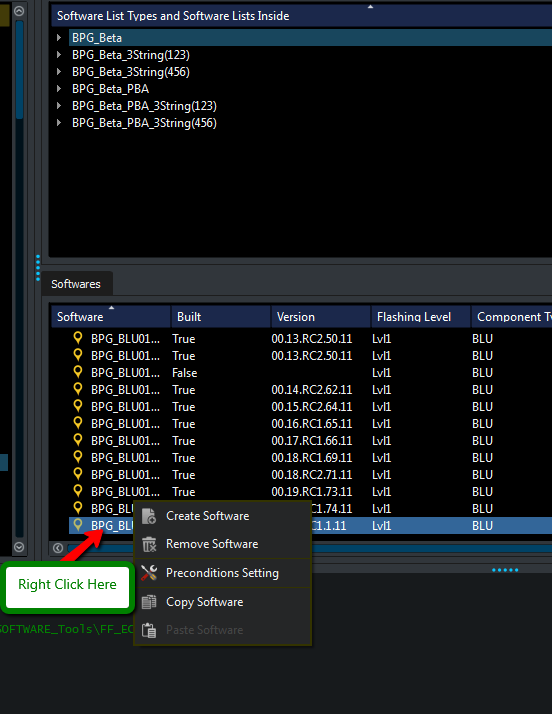
To add pre-condition, right click any row and select
Preconditions SettingsIf there is already a pre-condition defined the icon to the left of software name would be
greenFrom the right click pop-up dialog, select
Add Precondition Groupfrom bottom right. Currently only one group is selected
Then select the
Add Preconditionfor groupA
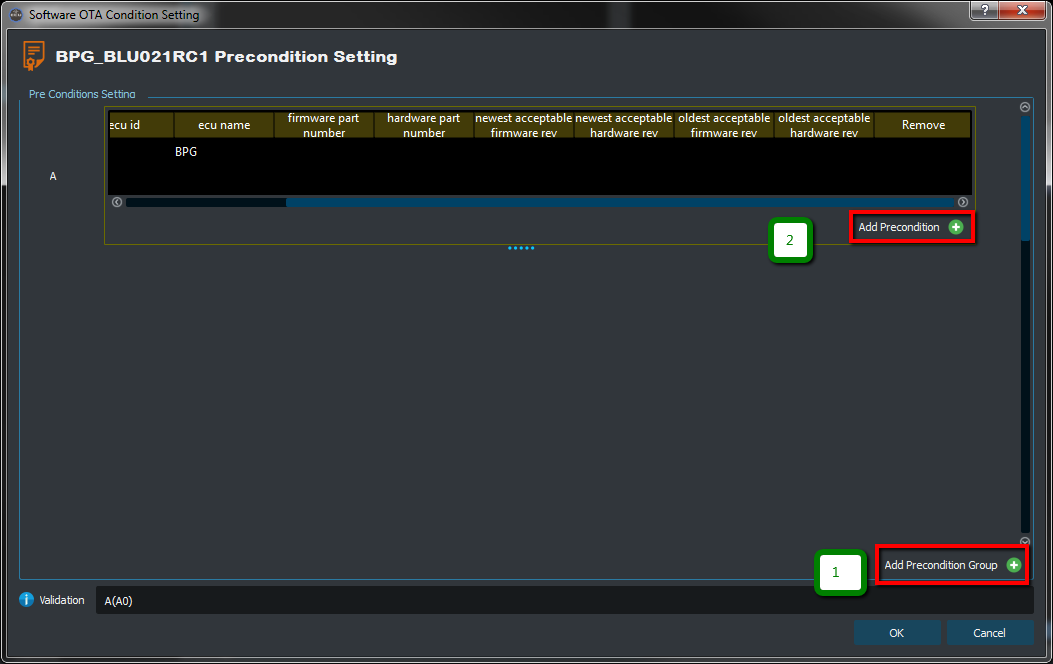
You need as many rows as the number of other component your current component depends on
Then please fill out the precondition accordingly, please see details for each field below
Field |
Description |
|---|---|
component id |
The component ID you want to refer this to |
ecu id |
The ID of the ECU you want this for |
ecu name |
Name of the ECU |
firmware part number |
Firmware part number of the component you are refering to |
hardware part number |
Hardware part number of the component you are refering to |
newest acceptable firmware rev |
The newest acceptable firmware rev of the component |
newest acceptable hardware rev |
The newest acceptable hardware rev of the component |
oldest acceptable firmware rev |
The oldest acceptable firmware rev of the component |
oldest acceptable hardware rev |
The oldest acceptable hardware rev of the component |
Note
All fields are optional, so if you are not sure please leave the field empty
The ecu id, name, component id are for the ecu for which you are refering, so for example you can refer to BGW’s component 2 while doing pre-conditions for BPG APP
Newest/Oldest is to define a range, so you can define that for BPG App 21 you need BGW App from 15 to BGW App 20
How to Add Release Notes
For more info please see Release Notes
TroubleShooting
The following are the areas to look at.
Information in the tracker is not correct, it does not kick off any Jenkins jobs.
The Jenkins Job is creating a component but not updating the tracker.
Information in the tracker is not correct, it does not kick off any Jenkins jobs
Look for something such as ERROR: package [My Package Name] is not ready because …
There is a string which should show what to fix.
The Jenkins Job for a component is failing
Look for ERROR: Jenkins Job [job]: failed.
Go to the Jenkins Job listed in the log.
Look at the Console View.
Look on the P: drive, P:FirmwareBuildsDF91ECU_ReleaseCandidate under the appropriate release folder.
If your software does not exist, look in depth into the Console Output. Software experts such as TBD can help.
The Jenkins Job is creating a component but not updating the tracker
Look for ERROR: Jenkins Job [job]: failed.
Go to the Jenkins Job listed in the log.
Look at the Console View.
Look on the P: drive, P:FirmwareBuildsDF91ECU_ReleaseCandidate under the appropriate release folder.
If your software does exist, your software was built, but it was unable to update the ECU tracker.
Temporary work around
Go to the Softwares Tab.
Edit the software file (files) that were just built.
Set Built to True.
Fill in a more detailed version number (must include a RC).
Fill in the filename.
Medium term solution(s)
The project_ID in the .json must be the ECU name.
Make sure that start_string is equal to “PROJECT_ID”_”APPLICATION_TYPE”
Longer term solution(s)
There will need to be changes to the format of LogisticsData.Json (or multiple files) when a single Jenkins job creates more than one .hex.
Make sure that start_string is equal to “PROJECT_ID”_”APPLICATION_TYPE” or “PROJECT_ID”_”APPLICATION_TYPE”_”VARIANT_TYPE”.
There will be new items to add to the LogisticsData.json so that more information can be automatically added to the tracker.
The Package Building Job is failing
After the job is run, in the Package Detail “Built” is None or Failed.
Look at the build log in Jenkins.
The most common cause is that .ecm files could not be created.
See if it attempted to create the .ecm files appropriately.
If .ecms were attempted and failed:
Review the .scr file information.
Speak to the OTA expert (TBD).
If .ecms were not attempted:
Double check that the start_string can locate the .hex file in the .zip file.
Double check the .zip file follows our naming conventions.
Double check that the files are marked as compliant or not compliant properly under flashing level.
Other errors
No jenkins jobs listed for start_string:
Double check the start_string. If it is correct, contact daniel.disler@ff.com to add the proper jenkins job for that start string.
No package with package name [package_name] found:
A domain or vehicle level package is missing one of the ECU or domains that should have previously been built.
package [Package] failed the following manifests were not built
package [Package] failed with exception
More than one package found with package name [package_name]
after running jenkins job(s) [Job Name], the software [Software] is still not built
Jenkins Connection not initialized, please try again. STOPPING
Scroll to the top of the log window, and find the log “INFO - Logging from file location: [File location]
Email the log to daniel.disler@ff.com and abhijit.bansal@ff.com
Video Tutorials
In house Jenkins ECUs
Supplier or non Jenkins ECUs