Test Report
Overview
This document shows the test report feature of ECU Tracker
- Author
Shan Deng
- Date
Nov 01, 2021
- Version
7.4.0
Instruction
To add and manage package test report please follow the following steps:
Whenever change the promote status of a package, please attach the test report in the job setting.
Use test report viewer tool to manage the test reports for all available packages
Warning
All packages from 0.23 onwards MUST have test report attached while changing its status. Without test report status will not be changed.
This feature is also available for version below 0.23 but is not required as a restriction.
Add Test Report
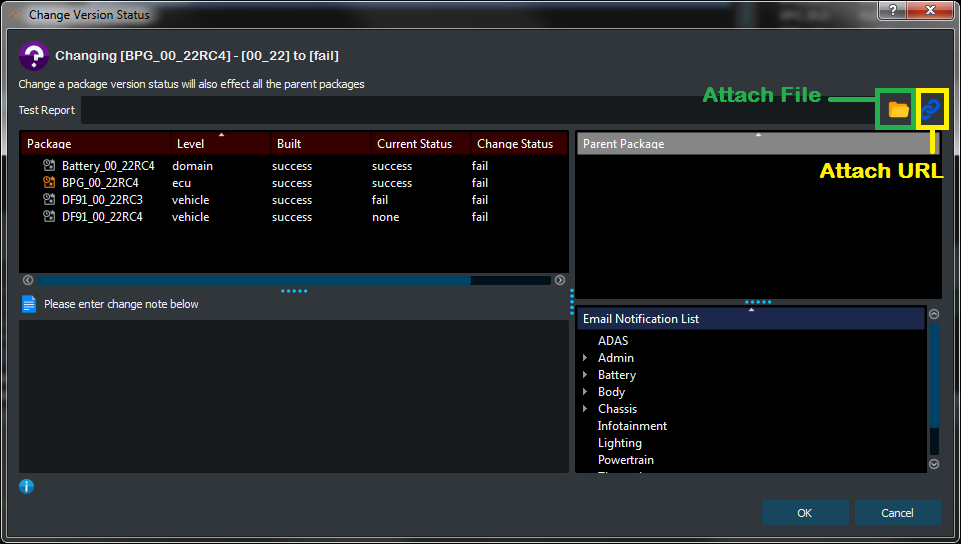
When change the status of a package, add the test report to the setting.
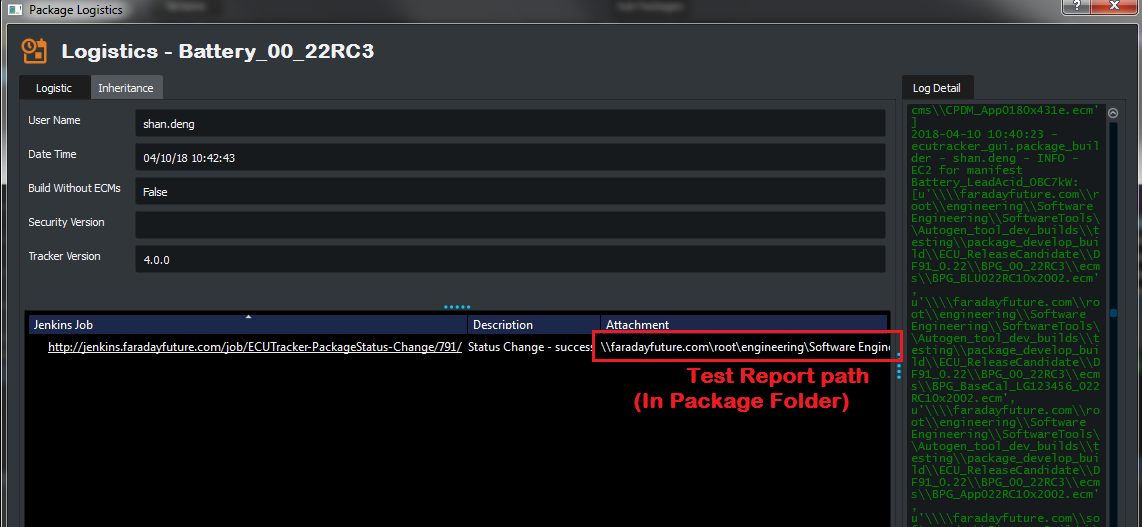
The test report will be copied to the actual package folder.
After adding the test report. You can view the test report with following method
File type report attachment: use the ‘Folder’ button to select file (The file will be copy to the package folder)
URL type report link: use the ‘Link’ button to input a link (It will check if the url is valid)
Test Report Viewing
Logistic Window:
Test Report Viewer:
Note
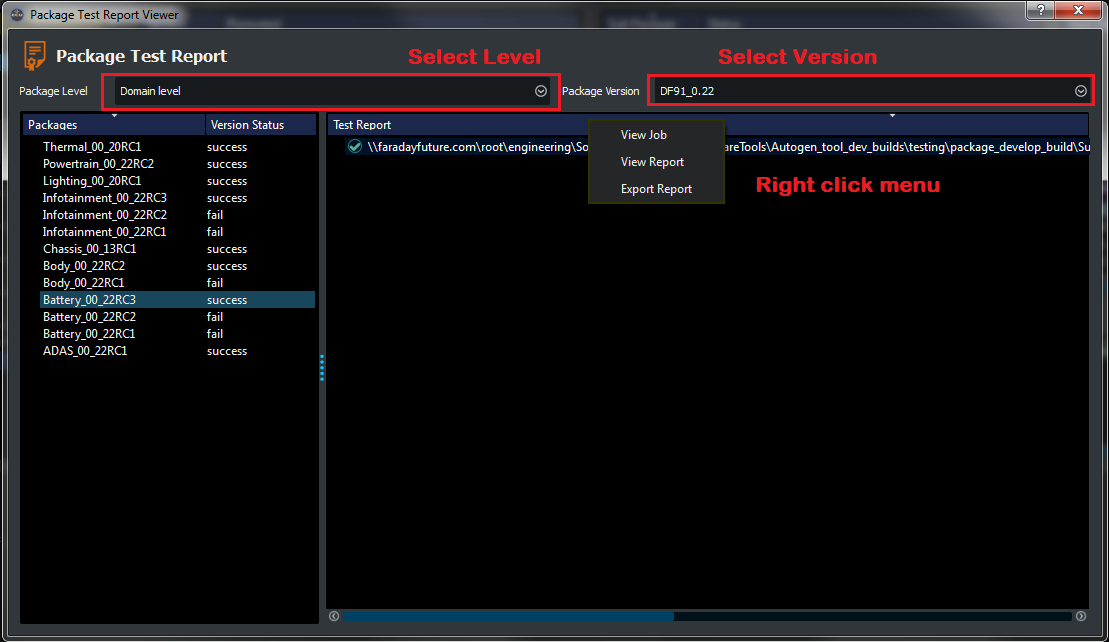
The Test Report Viewer can be found in .
Select corresponding package level and version that you want to view. Use right click menu to interact with the test report (Support view/export)