Developer Tools
Overview This document contains the feature instruction for Admin users only.
- Author
Shan Deng
- Date
Nov 01, 2021
- Version
7.4.0
Developer Tools Access
Note
This tools menu is only accessible by Admin users.
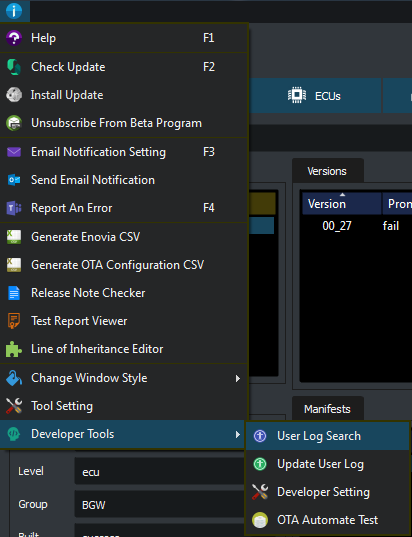
The tools menu is located
menu > Developer Tools
User Log Search Tool
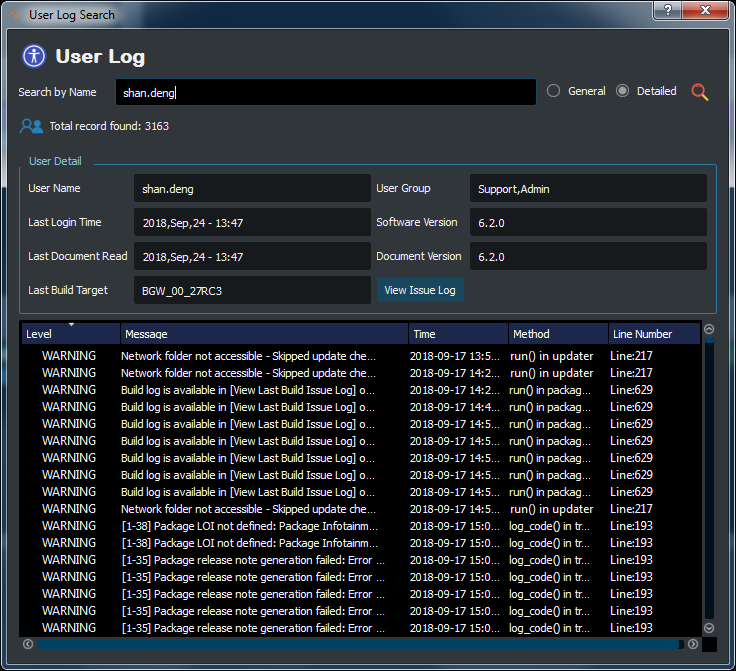
This feature is used to search logs by user name.
2 sets of information is provided General / Detailed.
To search a user, start by type in the name in the Search by Name field.
If the target user has last build package you can view the build log by click the View Issue Log button.
For build log please check Package Build Log.
Update User Log
- This feature is used to update all user status for:
User status of Active / Inactive.
Update user email addresses.
Developer Settings (Jenkins Job)
Note
This feature is only support by version 6.2+
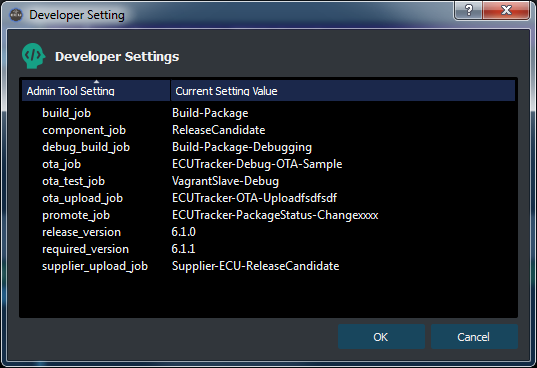
This feature is setting list for all Jenkins job used by ECU Tracker.
To modify the target job, please double click on the Current Setting Value field.
Setting name modification is not support (please use DB directly).
Add / Remove setting is not supported (Please use DB directly).
All jobs do have default setting (is no specified setting found).
Setting Name |
Default Value (no setting required) |
|---|---|
build_job |
Build-Package |
debug_build_job |
Build-Package-Debugging |
ota_job |
ECUTracker-Debug-OTA-Sample |
promote_job |
ECUTracker-PackageStatus-Change |
ota_upload_job |
ECUTracker-OTA-Upload |
component_job |
ReleaseCandidate |
supplier_upload_job |
Supplier-ECU-ReleaseCandidate |
ota_test_job |
OTA-HIL-RC-TESTS |
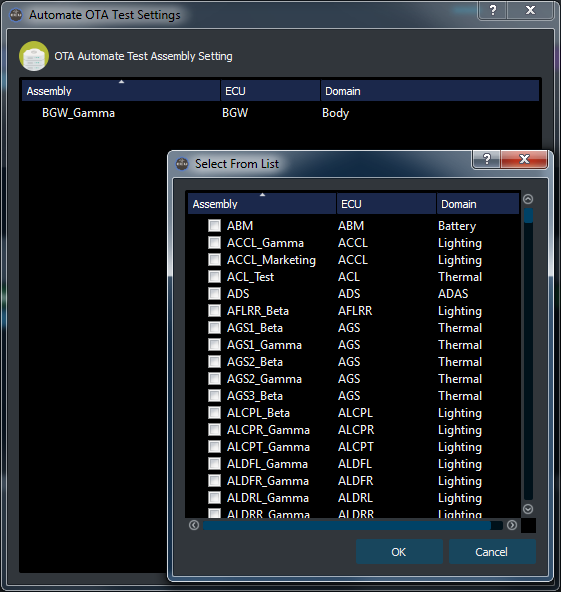
OTA Automate Test
To add/remove Assembly to/from automate test list right click in the list area.
To add target Assemblies by checking the check box in the pop up list.