Package Validation
Overview Below is the comprehensive documentation for package validation and promotion.
- Author
Daniel
- Date
Nov 01, 2021
- Version
7.4.0
Introduction
Finding a Package on the P: Drive
See: Find a Package.
Look at the Package Detail.
Make sure the package is built: Built = ‘success’.
The package can be found at the file path listed in Package Detail.
Exporting a Package
Exporting a package allows an offline copy of the package with all the files contained in the same location. It is useful for flashing files when there will not be fast access to the P: drive and it is also necessary to use an exported copy which has all the .ecm files together to do OTA flashing.
See: Find a Package.
Hit the export button.
Enter the directory where you want to put the resulting exported file. (Do not put this in P:FirmwareBuilds)
Using the .csv manifests
CSV manifests are included with every package to show what files to load together on to the test bench or vehicle.
See: Find a Package.
Go to the package location on the
P: drive.Go to the bom_manifests directory.
There will be one .csv for each ECU Assembly or Domain Variant, or Vehicle depending on which package it is.
Flash or verify all the firmware in order from top to bottom.
Using the OTA manifests
OTA manifests are used for flashing a vehicle, or test bench using OTA techniques.
Make sure you are using an exported package (or an ECU level package) so that all the ecms are together.
Copy the .fota and/or .swota from the ota_manifests directory to the ECMs directory.
Load things into the VUM (need instructions from somewhere else).
Validating a Manifest
Some ECUs or Domains or Vehicles have several variants. The ECU tracker provides the ability to mark which variants have been tested. Not all variants need to be tested for a package to be promoted. This is up to the DRE/ Domain Owner/ Vehicle SW Owner.
See: Find a Package.
Go to the Manifests section.
Add a version if necessary by right clicking on the 2nd box in the Manifests section.
Double click and edit the version.
Double click and select success or fail for the manifest.
Promoting or Failing a Package
Whenever a package has been sufficiently validated, it should be promoted for that release.
See: Find a Package.
Go to the Versions section.
Right click the version you want to promote and select the appropriate choice.
To promote select
Promote Version.To set the status to None,
Postpone Version.To fail a package select
Fail Version.
Once you select this it will show you a pop up box to let you pick email. For more info Email Settings.
Once email is selected it will start a Jenkins job to change the status of the page.
Note
Promotion is no longer instantaneous. As jenkins job can take time to execute. Once the promotion is done you will get an email.
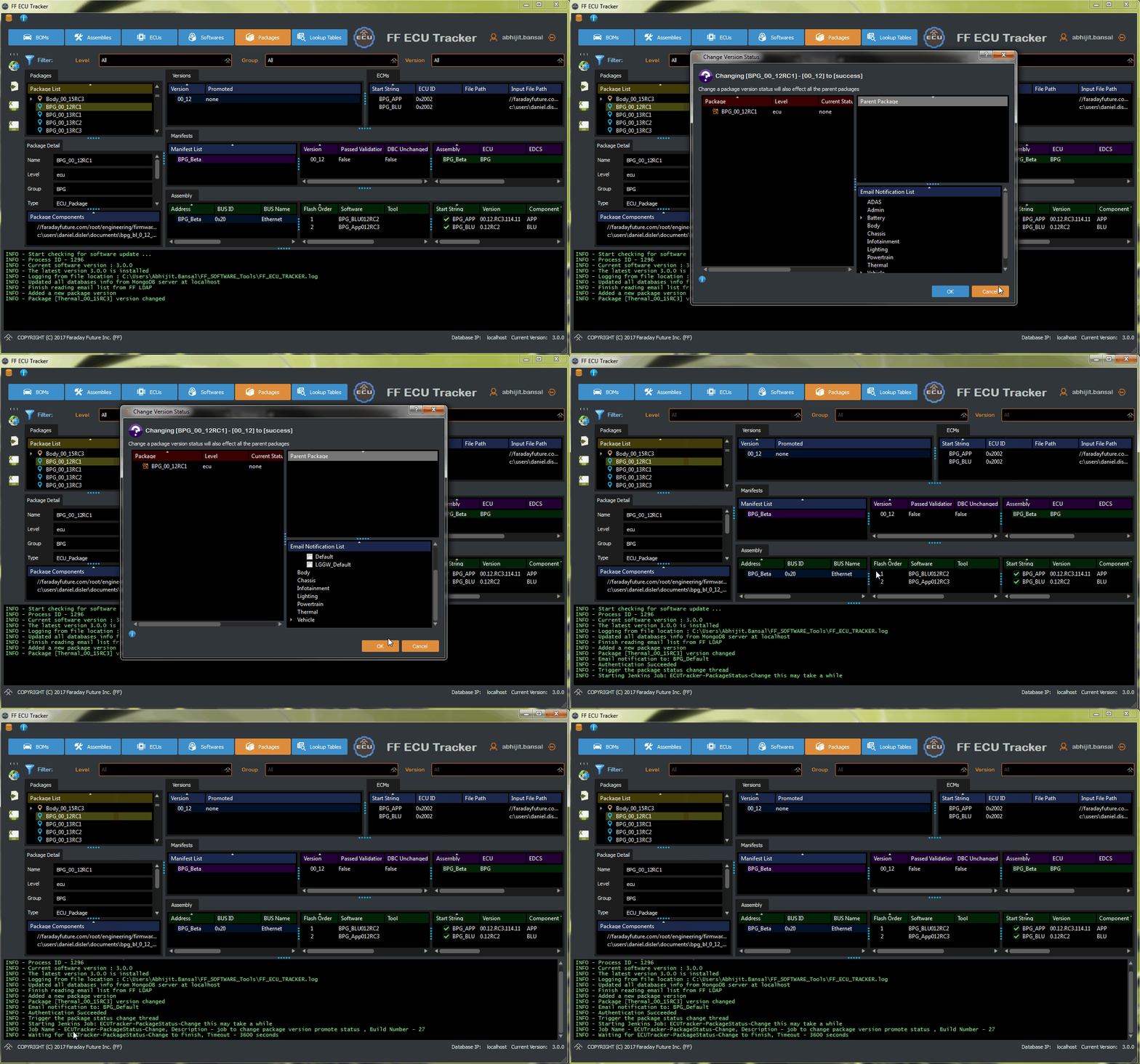
A gif to show how to promote a package
Warning
If you fail a package that was already promoted before, it will warn you and show you all the other packages that it will fail. This is done so that if you fail a child package, it automatically fails parent package. So for example, if you fail BPG 0.15 package, it will fail Battery 0.15 and Vehicle 0.15 package too if created already. The tool will try to fill out emails if defined properly, if not please manually select the emails to the list to send out.
Warning
You can not promote or fail a package that is not built properly. Please verify that the package is
built properly, by checking the Package Detail Window and looking for Built value.
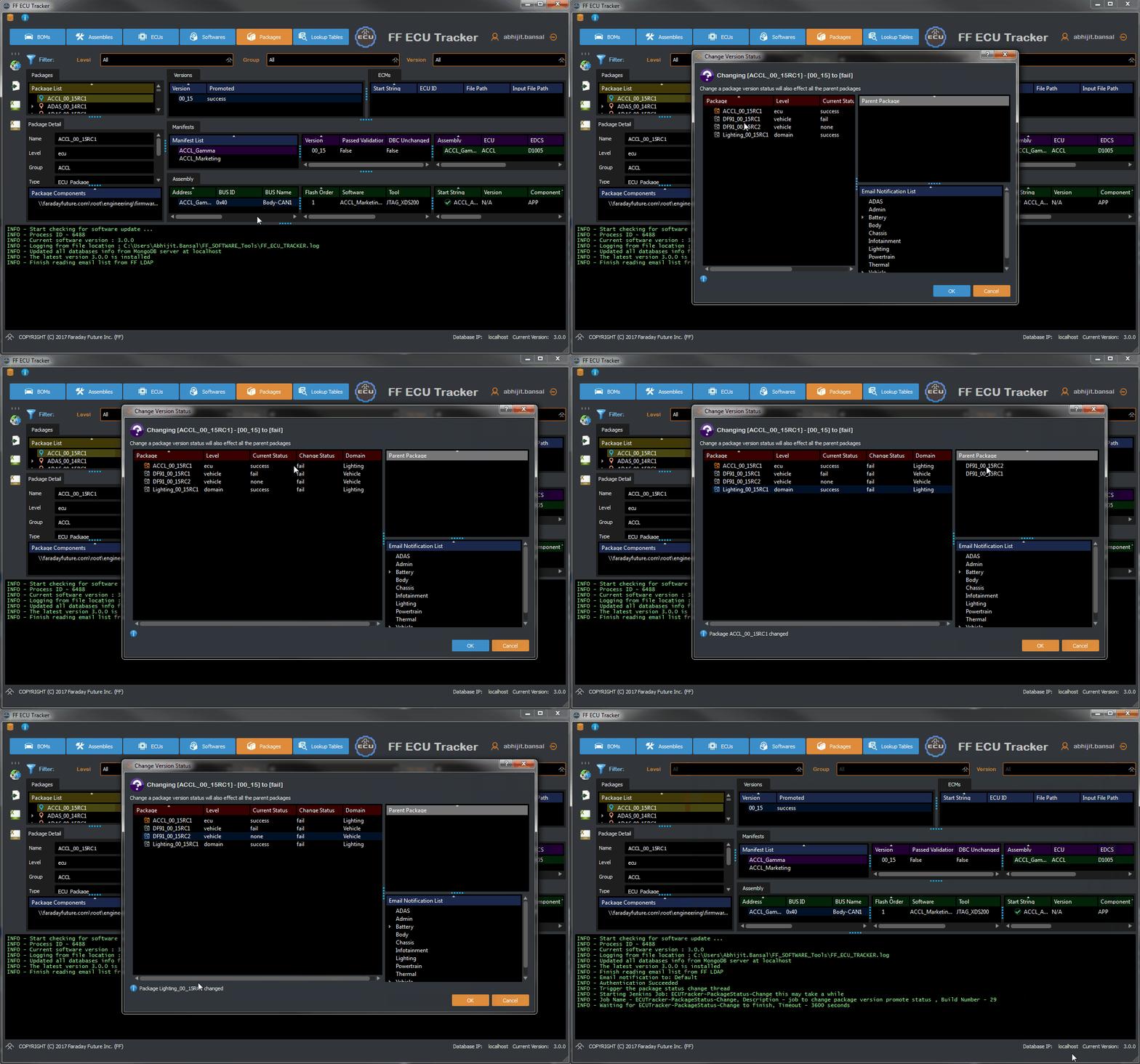
A gif to show how to fail a package
Find a Package
Go to the Packages tab.
Select the Level from the dropdown box.
Select the Group from the dropdown box.
Select the Version from the dropdown box.
Note: There might not be a package for the level, group, and version. If so, it has not been created yet.