Package Diagnostic
Overview
This document is the introduction for the ODX (diagnostic) information storage and parsing by ECU Tracker
- Author
Shan Deng
- Date
Nov 01, 2021
- Version
7.4.0
Instruction
Note
From ECU Tracker version 5.0.0
The ODX file (.xlsm) will be new type of software, which shall be stored ECU components.
The ECU package will include the ODX files in the package folder > odx.
The output ODX format will include both excel (.xlsm) and odx (.odx) file, which is converted by [jAFto] tool.
Only ECU level package will include the ODX files, while other level can use manifest menu to export the odx files from child ECU packages.
The ODX conversion tool [jAFto] is provide by DSA.
Pre-Settings
Note
The following setting is required before access the ODX feature.
Lookup Table Update (ComponentTypes): Make sure Component Type ODX is added.
Lookup Table Update (FlashingLevels): Make sure Flashing Level ODX is added.
[Developers Only]: Make sure you check out the jAFto repo master branch locally and update the odx path in the global constant.
Usage
Add ODX software to ECU
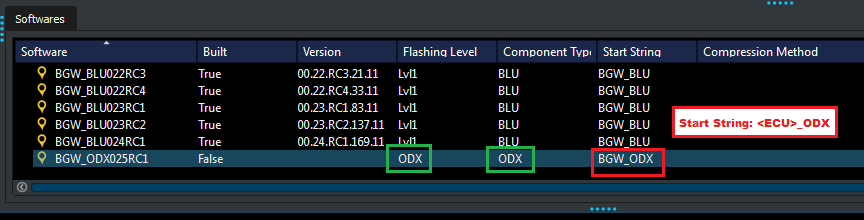
Add a new software in the Softwares window Softwares.
Rename the entry to desired name.
Make sure the Flashing Level and Component Type are set to ODX.
Make sure the Start String follow the naming format <ECU>_ODX.
Mark the Built to False in order to update other information by building the component.
Add ODX software to software list for building
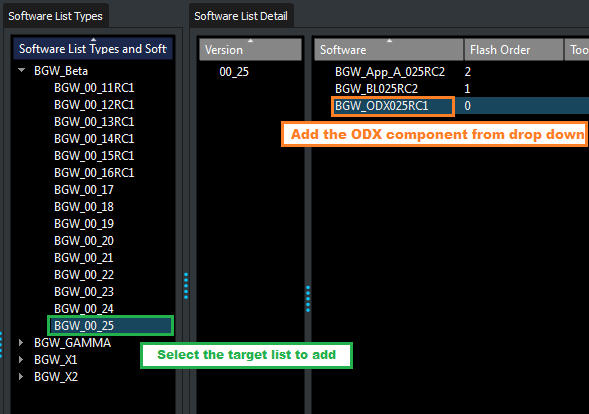
To include the odx while building the package, you need to add the ODX software entry to the software list.
Select the software list you want to add in the tab [Software List Type].
Right click to add a new software to the list and select the ODX component from drop down.
Add Jenkins Job for ODX component
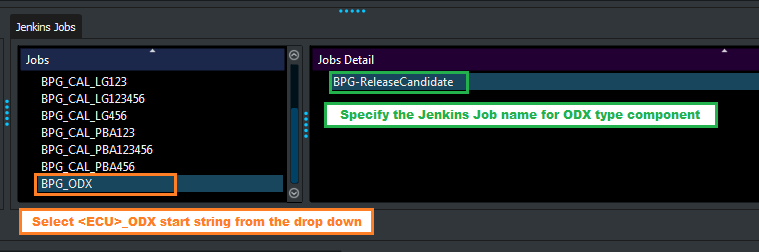
In order to build the ODX component, you need to specify the Release Candidate Jenkins Job for ODX.
In the ECUs window Jenkins Jobs tab, right click to add a new Job type.
Select the start string <ECU>_ODX from the drop down.
Specify the Jenkins job name in the Jobs Detail tab.
BV and EV
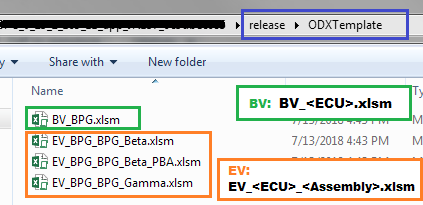
The software zip created by the component Jenkins job should contain the ODX files.
The ODX excel files should be include in zip>release>ODXTemplate folder.
The zip file should only contains one BV (base variant) ODX file. Naming format BV_<ECU>.xlsm.
Each assembly using the odx software should have a EV file. Naming format EV_<ECU>_<Assembly>.xlsm.
Accessibility
ODX information access from UI
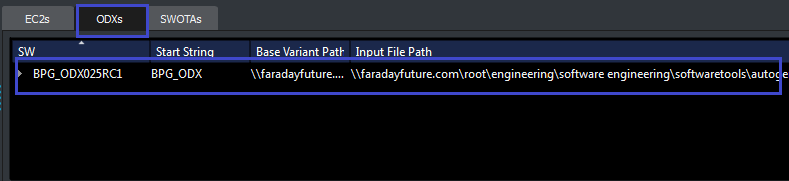
After building the package, you shall be able to see the ODX entry in the ODXs Tab.
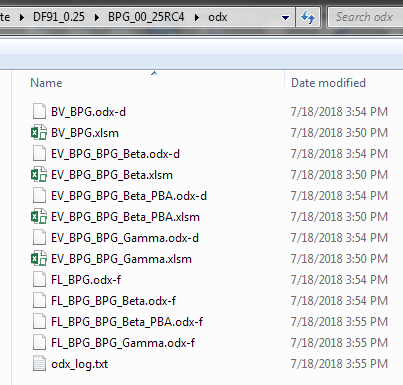
The ODX files (excel and odx format) will be stored in the package folder odx sub folder.
A jAFto run log will also be attached to the output folder.
Package ODX Export
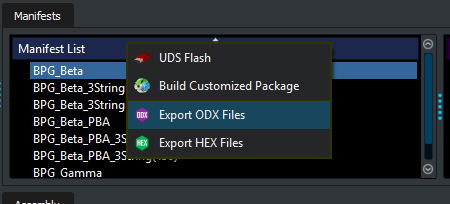
For all level packages the ODX export is supported.
Export is access by right click menu of the Manifest tab in Packages window.
Select the target manifest and output folder to export.
Note
The export feature is only support exporting elements from package built with ECU Trackre version 5.0.0+
Reference
FF ODX batch tool can be find here : GitBucket
FF ODX batch tool document: Documentation